

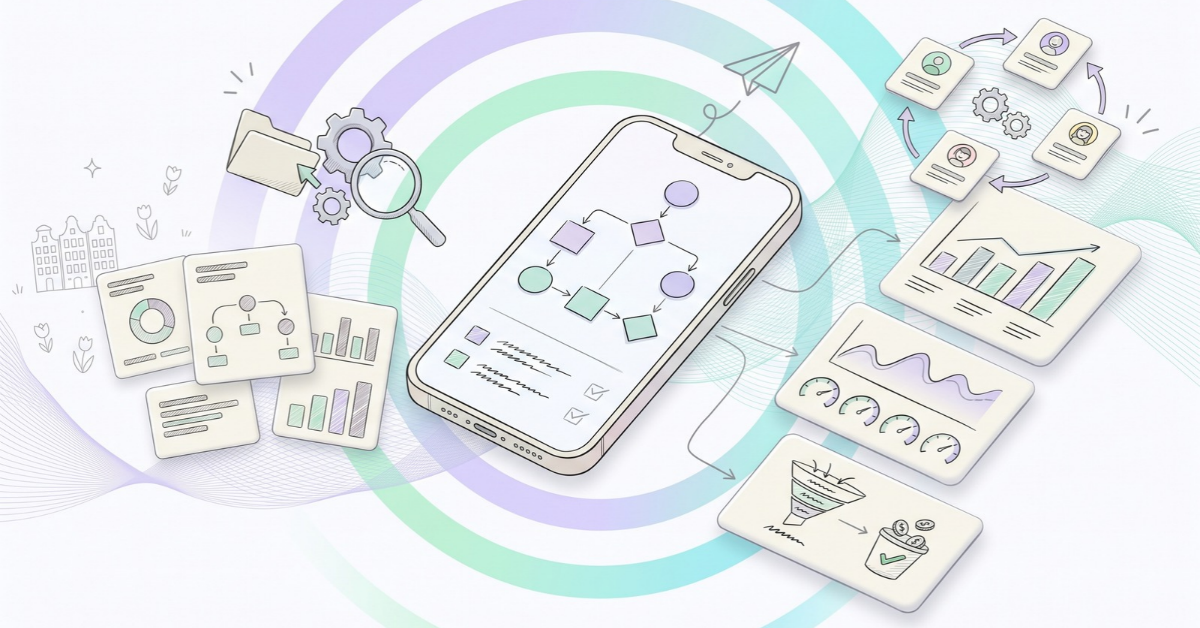
To set up deep linking in AppsFlyer, you create a OneLink template in the AppsFlyer dashboard, configure your iOS and Android app settings, implement the AppsFlyer SDK to handle incoming deep link data, and test your links before going live. The process takes a few hours of development work but pays off immediately in user experience and campaign performance. The sections below walk through each part of the setup in detail.
What types of deep linking does AppsFlyer support?
AppsFlyer supports three types of deep linking: standard deep linking, deferred deep linking, and retargeting deep links. Standard deep links open a specific screen in an already-installed app. Deferred deep links do the same, but for users who do not yet have the app installed—they go through the app store first and land on the right screen after install. Retargeting deep links re-engage existing users through paid campaigns.
Each type serves a different stage of the user journey. Standard deep linking works well for existing users who tap a link and expect to land on a specific product, article, or feature. Deferred deep linking is particularly useful for user acquisition campaigns where a new user clicks an ad, installs the app, and should land on the exact content that prompted the click rather than a generic home screen. Without deferred deep linking, users disappear after install into a blank onboarding flow with no connection to the ad they responded to. Retargeting deep links bring dormant users back to a relevant in-app destination, which we cover in more detail at the end of this article.
How does OneLink work in AppsFlyer?
OneLink is AppsFlyer’s universal deep linking solution. It is a single smart URL that detects the user’s device and operating system, then routes them to the right destination: the App Store, Google Play, or directly into the app if it is already installed. OneLink handles both standard and deferred deep linking through one link structure, which simplifies campaign management across channels.
When a user clicks a OneLink URL, AppsFlyer reads the device context and applies the routing logic you configured. If the app is installed, the user goes straight to the in-app screen defined in the link parameters. If the app is not installed, the user lands on the relevant app store, and once they install and open the app, AppsFlyer passes the original deep link data to the SDK so the app can route them to the correct screen. This is what prevents app onboarding drop-off caused by a disconnected post-install experience.
OneLink also supports custom domains, which lets you use a branded short URL rather than a generic AppsFlyer domain. This improves click-through rates and keeps your brand consistent across email, social, and paid channels.
How do you configure deep linking in the AppsFlyer dashboard?
To configure deep linking in the AppsFlyer dashboard, go to your app’s configuration settings, open the OneLink section, and create a new OneLink template. You define the iOS and Android destinations, set fallback URLs for desktop or unsupported devices, and specify the default deep link path. You then generate your OneLink URL and attach parameters for each campaign or content destination.
The key steps are:
- Navigate to Configuration > OneLink Custom Links in the AppsFlyer dashboard
- Create a OneLink template and assign it to your app
- Set the iOS App Store link and Android Play Store link as the install destinations
- Define a default deep link value (for example, a home screen path) as the fallback
- Add campaign-specific parameters such as deep_link_value and deep_link_sub1 to each link you create
- Configure your associated domains (iOS) and app links (Android) in the dashboard to enable universal and app link behavior
The deep_link_value parameter is what your app reads to decide which screen to open. Keeping this value consistent between your marketing team and your developers avoids the common problem of a retargeting ad opening the wrong page.
What SDK changes are needed to handle deep links in-app?
Your development team needs to implement the AppsFlyer SDK’s deep link listener, which fires when the app is opened via a deep link. The listener receives the link parameters and your app uses those values to navigate the user to the correct screen. Without this listener, deep link URLs open the app but the app ignores the routing instructions.
The specific implementation depends on your platform. For native iOS and Android apps, you register a callback in the AppsFlyer SDK initialization block. For React Native, Flutter, or Unity apps, AppsFlyer provides dedicated plugins with equivalent listener methods. Your developer should:
- Initialize the AppsFlyer SDK with your dev key and app ID
- Register a onDeepLinking or onAppOpenAttribution callback
- Read the deep_link_value and any sub-parameters from the callback payload
- Map those values to your app’s internal navigation logic
- Handle the case where no deep link value is present (standard open with no link)
For deferred deep linking, the SDK automatically retrieves the stored link data on first open after install, so the same listener handles both standard and deferred scenarios without additional code.
How do you test deep links before going live?
You test deep links in AppsFlyer using the OneLink testing tool in the dashboard, combined with the AppsFlyer SDK integration testing on a real device. The dashboard tool lets you preview routing logic before generating live links. On-device testing confirms that the SDK receives the correct parameters and that your app navigates to the right screen.
A reliable testing process follows these steps:
- Use the OneLink Link Tester in the AppsFlyer dashboard to simulate clicks and verify routing
- Install a debug build of your app on a physical device (not a simulator)
- Click a test OneLink URL from a browser or messaging app on that device
- Check the AppsFlyer SDK logs to confirm the deep link parameters are received correctly
- Verify the app navigates to the expected screen based on the deep_link_value
- Test the deferred scenario by uninstalling the app, clicking the link, installing from the store, and confirming the correct screen loads on first open
Testing on a real device is important because universal links (iOS) and app links (Android) behave differently in simulators. Many teams skip the deferred test and only discover the problem when users complain that the cart was lost after reopening the app or that they landed on the home screen instead of the product page they clicked.
Why are deep links not working after setup?
Deep links most commonly stop working due to misconfigured associated domains on iOS, missing intent filters on Android, or a mismatch between the deep_link_value in the link and what the app’s SDK listener expects. Each platform has its own requirements, and a single missing configuration step breaks the entire flow silently.
iOS deep link issues
On iOS, universal links require your app’s bundle ID and team ID to be registered in the AppsFlyer dashboard, and your app must have the correct associated domain entitlement pointing to your OneLink domain. If either is missing or mismatched, iOS falls back to opening the App Store instead of the app, even when the app is installed. Users then land in the wrong place or experience lost users after install because the deferred link data is never retrieved.
Android deep link issues
On Android, app links require a verified intent filter in your app’s manifest and a hosted assetlinks.json file on your domain. If the SHA-256 certificate fingerprint in the asset links file does not match your signed APK, Android treats the link as a regular web URL and opens a browser instead of the app. This is a frequent cause of users not opening the app again after tapping a retargeting link.
Beyond platform-specific issues, check that the deep_link_value your marketing team uses in campaign links matches exactly what your developers have mapped in the SDK listener. Case sensitivity matters. A mismatch here causes the wrong screen to open after an ad click without any error in the AppsFlyer dashboard, making it difficult to diagnose.
Should I use deep linking for retargeting campaigns in AppsFlyer?
Yes, deep linking is important for retargeting campaigns in AppsFlyer. Without it, a retargeting ad that drives a user back to your app opens the home screen rather than the relevant content, which eliminates most of the value of the campaign. Deep linking connects the ad creative directly to the in-app destination, which increases the likelihood that the user completes the intended action.
Retargeting campaigns typically target users who have already installed the app but have not converted or have gone dormant. Common scenarios where deep linking directly improves results include:
- A user added items to a cart but did not check out—the retargeting ad links directly to the cart screen
- A user viewed a product or service page—the ad links back to that exact page
- A user has not opened the app in 30 days—the ad links to a relevant offer or feature update
In each case, landing the user on the correct screen removes friction and reduces the chance of app onboarding drop-off or immediate exit. AppsFlyer’s retargeting attribution also requires deep link parameters to correctly attribute the re-engagement event, so skipping deep linking means losing visibility into what is actually driving conversions from your retargeting spend.
If you are running retargeting through Meta, TikTok, or Google, the deep link value needs to be passed through each platform’s ad setup correctly. Each platform has slightly different requirements for how deep link parameters are appended, so it is worth verifying the setup for each channel separately.
Setting up deep linking properly across iOS, Android, and multiple ad platforms takes careful coordination between your marketing and development teams. If you want to make sure your attribution and routing are configured correctly from the start, our app growth expertise covers the full technical and strategic setup. You can also talk to a Wuzzon specialist to get a free consultation on your current deep linking and retargeting setup.
Frequently Asked Questions
Can I use AppsFlyer deep linking without a custom domain, and is it worth setting one up?
You can use AppsFlyer’s default OneLink domain without a custom domain, and the deep linking functionality works exactly the same way. However, setting up a custom branded domain (e.g., go.yourapp.com) is worth the one-time configuration effort because it improves click-through rates, builds user trust, and keeps your brand consistent across email, SMS, and paid channels. If you are running high-volume campaigns, the lift in CTR alone typically justifies the setup time.
How do I pass deep link data through paid channels like Meta or Google Ads without it breaking?
Each ad platform has its own method for appending deep link parameters to destination URLs, and the most common mistake is URL-encoding issues or parameters being stripped during ad review. For Meta, you pass the deep link value in the App Link destination field rather than the landing page URL. For Google Ads, use the final URL suffix to append your deep_link_value and sub-parameters. Always test a live ad in a small campaign before scaling to confirm the parameters arrive correctly in your AppsFlyer SDK logs.
What happens if a user clicks a deep link on a desktop browser where the app can't be installed?
When a OneLink URL is clicked on a desktop browser, AppsFlyer detects the device context and routes the user to the fallback URL you configured in your OneLink template — typically your website or a specific landing page. This is why setting a meaningful fallback URL during dashboard setup matters: a generic homepage is better than a broken link, but a campaign-specific landing page that mirrors the ad content delivers the best experience for desktop users.
How long does AppsFlyer store deferred deep link data after a user clicks a link but hasn't installed yet?
AppsFlyer stores the deferred deep link data for up to 90 days after the original click, meaning a user who clicks your link and installs the app weeks later will still be routed to the correct in-app screen on first open. However, the attribution window for crediting the install to a specific campaign is separate and typically set to 7 days by default, which you can adjust in your campaign settings. The deferred deep link routing and the attribution window are independent configurations, so it is worth reviewing both.
Do I need a separate OneLink template for each campaign, or can one template handle multiple campaigns?
One OneLink template can power unlimited campaigns — you do not need a new template for each one. The template defines the routing logic (iOS destination, Android destination, fallback URL), while campaign-specific content is controlled through parameters like deep_link_value, deep_link_sub1, and UTM parameters that you append when generating individual links. A common best practice is to maintain one template per app and use naming conventions in your sub-parameters to keep campaign links organized and reportable in the AppsFlyer dashboard.
What is the most common mistake teams make when setting up deep linking for the first time?
The single most common mistake is misalignment between the deep_link_value strings used by the marketing team in campaign links and the values mapped in the SDK listener by developers. Since this mismatch produces no error in the dashboard and simply opens the wrong screen, it often goes unnoticed until users report a poor experience. The fix is straightforward: create a shared reference document that lists every valid deep_link_value, the screen it maps to, and who owns each one, and make this document part of your campaign launch checklist.
Is deep linking setup different for apps built with React Native or Flutter compared to native iOS and Android?
The dashboard configuration and OneLink setup are identical regardless of your tech stack. The difference is on the SDK side: AppsFlyer provides official plugins for React Native, Flutter, and Unity that expose the same onDeepLinking callback as the native SDKs, but with platform-specific initialization syntax. The main watch-out for cross-platform frameworks is that the associated domains (iOS) and intent filters (Android) still need to be configured at the native project level — these are not handled by the framework plugin itself and are frequently missed during initial setup.
Related Articles
- Why does my app link work on Android but not iOS?
- How do I compare app attribution providers fairly?
- 4 signs your finance team shouldn't trust your app data
- How do you advertise an app to compete with market leaders?
- How do you advertise an app without compromising user privacy?
- What is the difference between organic and paid app advertising?
- How do you advertise an app to reduce user churn?
- What are backend keywords on iOS?
- What is the difference between app store optimization and SEO?
- What are app store creatives?

 EN
EN  NL
NL