
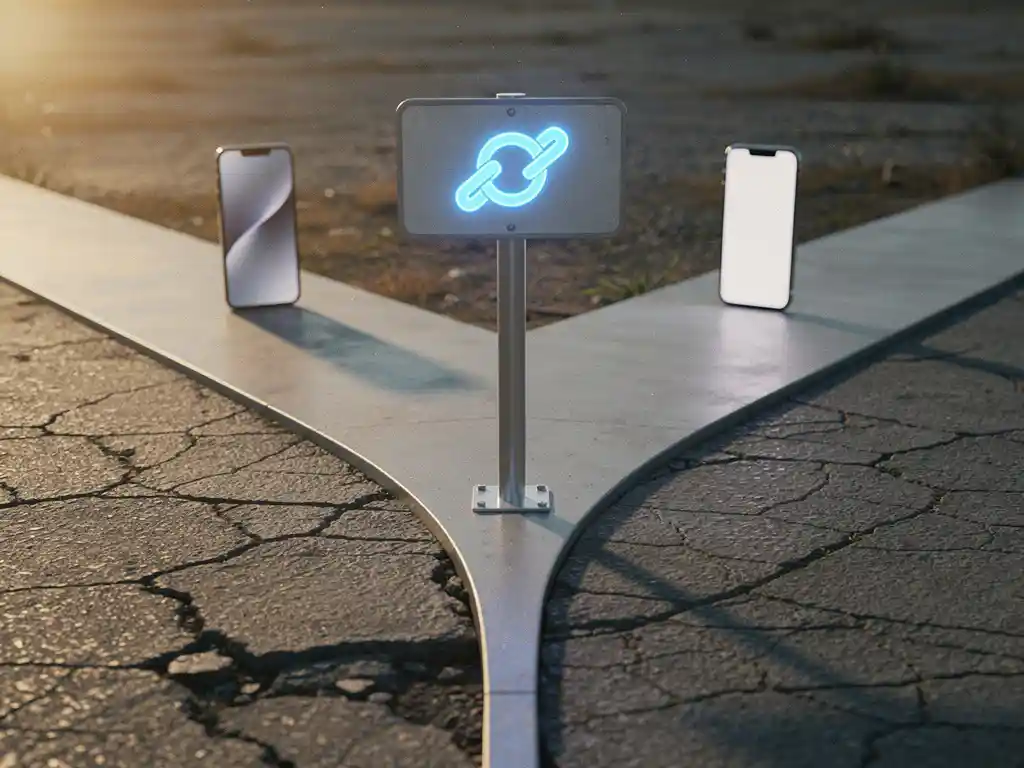
Your app link works on Android but not iOS because the two platforms use completely different systems for handling deep links, and iOS has a stricter verification process that Android does not enforce in the same way. On Android, app links are verified through a assetlinks.json file, while iOS relies on a file called the apple-app-site-association (AASA), which Apple actively fetches and validates before universal links will function. If that file is missing, misconfigured, or served incorrectly, iOS simply falls back to opening a browser instead of your app. The sections below walk through the most common causes, how Apple’s verification works, and what you can do to fix it.
What’s the difference between Android app links and iOS universal links?
Android app links and iOS universal links both allow a URL to open directly inside your app rather than a browser, but they use different verification mechanisms and behave differently when something goes wrong. Android app links are verified through a assetlinks.json file hosted on your domain, while iOS universal links rely on an apple-app-site-association file that Apple fetches and caches at the system level during app installation.
The practical difference matters a lot when debugging. On Android, if verification fails, the system typically shows a disambiguation dialog asking the user which app to open the link in. On iOS, a failed universal link silently falls back to Safari, with no warning to the user and no obvious error for you to catch. This is why you can have a working Android experience while iOS users quietly land on a webpage instead of inside your app, triggering exactly the kind of lost users after install and app onboarding drop-off that erodes your campaign performance.
Another key difference is that iOS universal links only trigger when a user taps a link from outside the app, such as from an email, a browser, or a messaging app. They do not fire when a user types the URL directly into Safari or when the link is opened from within the same app. Android app links behave similarly, but the edge cases differ enough that you cannot assume parity between the two platforms.
Why do iOS universal links fail when Android app links work?
iOS universal links fail when Android app links work because Apple’s verification system is more rigid and happens at a specific point in time: during app installation. If your AASA file is not correctly accessible at that moment, iOS will not establish the link between your domain and your app, and universal links will not work regardless of how well your Android setup is configured.
The root causes typically fall into a few categories. Your AASA file may not be served over HTTPS, may return the wrong content type, may be behind a redirect, or may simply contain a typo in the app ID or path configuration. Apple’s CDN fetches the AASA file through its own servers, not from the user’s device, which means your file needs to be publicly accessible without any authentication or geo-blocking.
It is also worth noting that Apple caches the AASA file aggressively. If you update the file after a user has already installed your app, they will not automatically get the updated version until they reinstall. This means a misconfiguration that existed at install time will continue to cause failures even after you have fixed the file on your server.
How does Apple verify the apple-app-site-association file?
Apple verifies the AASA file by fetching it from your domain through Apple’s own CDN infrastructure when a user installs your app, not when they tap a link. Apple requests the file from https://yourdomain.com/.well-known/apple-app-site-association and validates that it is correctly formatted, served over HTTPS without redirects, and contains a matching app ID for the installed app.
The app ID in your AASA file must match the format TEAMID.BUNDLEID exactly. Apple cross-references this against the entitlements in your app binary. If the team ID or bundle ID does not match what is registered in App Store Connect, the verification silently fails and universal links will not work.
Apple also requires the file to be served with a content type of application/json. Some servers default to serving files without an extension using a generic content type, which will cause the verification to fail. Additionally, Apple’s CDN may not immediately re-fetch an updated AASA file, so changes can take time to propagate even after you have corrected the configuration on your end.
What are the most common iOS universal link configuration mistakes?
The most common iOS universal link configuration mistakes are an incorrect app ID format in the AASA file, serving the file over HTTP instead of HTTPS, using a redirect on the AASA file URL, and not adding the associated domains entitlement to your Xcode project. Any one of these will silently break universal links for all users.
Here are the mistakes we see most frequently when auditing broken deep link setups:
- Wrong app ID format: The AASA file must use
TEAMID.BUNDLEID, not just the bundle ID. Missing or swapping the team ID is a very common error. - Redirect on the AASA URL: Apple does not follow redirects when fetching the file. If your domain redirects HTTP to HTTPS, or www to non-www, the fetch may fail depending on which variant Apple requests.
- Missing associated domains entitlement: Your Xcode project must include the
applinks:yourdomain.comentitlement. Without it, iOS will not even attempt to match links from that domain to your app. - Incorrect path patterns: The paths array in your AASA file controls which URLs trigger the universal link. A misconfigured wildcard or a missing path entry means only some links open the app while others fall back to Safari.
- AASA file not in the correct location: The file must be accessible at
/.well-known/apple-app-site-associationor directly at/apple-app-site-association. Both locations are checked, but the file must be reachable without authentication.
These issues directly contribute to users disappearing after install and wrong screen after ad click problems, because the link either fails to open the app at all or opens it without passing the correct context through to the right in-app destination.
How can you test and debug a broken iOS universal link?
You can test and debug a broken iOS universal link by using Apple’s AASA validator tool, checking the file directly in a browser, reviewing the associated domains entitlement in Xcode, and testing link behavior on a physical device. The iOS Simulator does not reliably replicate universal link behavior, so always test on real hardware.
Start with Apple’s own validation tool at developer.apple.com/news/universal-links, which fetches your AASA file the same way Apple’s CDN does and reports any errors. Then verify the following in sequence:
- Open
https://yourdomain.com/.well-known/apple-app-site-associationdirectly in a browser and confirm it returns valid JSON with the correct content type. - In Xcode, check that the associated domains capability is enabled and that your domain is listed with the
applinks:prefix. - On a physical test device, install a fresh build of your app, then tap a link from Notes or Messages (not Safari) to trigger the universal link handler.
- Check the device console in Xcode for any swcd or AASA-related log messages, which will tell you whether the file was fetched successfully and whether the app ID matched.
If your link opens Safari instead of the app, the most likely cause is a verification failure at install time. Reinstall the app after fixing your AASA file to force a fresh verification. If the app opens but lands on the wrong screen, the issue is in your app’s deep link routing logic rather than the AASA configuration itself. This is the source of the retargeting ad opens wrong page and cart lost after reopening app problems that affect re-engagement campaigns.
Should you use a third-party deep linking solution instead?
Using a third-party deep linking solution is worth considering if you need deferred deep linking, cross-platform consistency, or reliable attribution alongside your deep links. Tools like Branch handle the AASA and assetlinks configuration for you, provide fallback logic when native universal links fail, and pass link context through the install process so new users land on the right screen after downloading your app for the first time.
Native universal links cannot pass data through a fresh install. If a user taps a link before installing the app, iOS sends them to the App Store, and once they install and open the app, the original link context is lost. This is a direct cause of lost users after install and app onboarding drop-off in performance campaigns, where you expect users to land on a specific offer or onboarding flow but they arrive at a generic home screen instead.
Branch deep linking solves this through a technique called deferred deep linking, which stores the intended destination and passes it to the app on first open after install. This means a user who taps a retargeting ad, installs the app, and opens it for the first time will still land on the correct product page or campaign screen rather than starting from scratch.
That said, third-party solutions add complexity and cost. If your use case is straightforward and you do not need attribution or deferred linking, fixing your native AASA configuration is the right first step. But for any app running paid acquisition campaigns, re-engagement retargeting, or personalized onboarding flows, a solution like Branch is genuinely useful for closing the gap between ad click and in-app experience.
If you are dealing with users not opening the app again after install, or a broken post-click experience that is hurting your campaign results, getting the deep linking layer right is one of the highest-impact fixes available to you. Our app growth stack services at Wuzzon cover exactly this kind of technical setup alongside your broader acquisition and retention strategy. If you want to walk through your specific setup with someone who has seen these issues across many different apps and platforms, you are welcome to request a free consultation and we will take a look together.
Frequently Asked Questions
How long does it take for Apple to re-fetch my AASA file after I fix it?
Apple’s CDN can take anywhere from a few hours to several days to re-fetch an updated AASA file, and there is no way to manually trigger a refresh. For testing purposes, the most reliable approach is to reinstall the app on a physical device after making changes to your AASA file, which forces a fresh verification at install time. For existing users, the updated configuration will only take effect after they reinstall the app, so critical fixes may require a push notification or in-app prompt encouraging users to reinstall.
Can universal links break after an iOS update?
Yes, iOS updates can occasionally reset or invalidate universal link associations, requiring users to reinstall the app to re-trigger the AASA verification. Apple has also changed the AASA file format between iOS versions, most notably with the introduction of the updated format in iOS 13 and later, which added the ‘applinks’ key structure. If you notice a sudden drop in universal link performance after a major iOS release, check Apple’s developer documentation to confirm your AASA file still matches the current expected format.
What happens to universal links when a user opens the link inside a third-party app like Instagram or LinkedIn?
Many third-party apps, including Instagram, Facebook, LinkedIn, and TikTok, use in-app browsers (also called WebViews) that do not support universal links at all. When a user taps a link inside one of these apps, iOS opens it in the app’s built-in browser rather than handing it off to the system, which means your universal link handler never fires. This is a well-known limitation of native universal links and is one of the strongest arguments for using a third-party deep linking solution like Branch, which includes fallback logic specifically designed to handle in-app browser scenarios and still route users to the correct in-app destination.
Do universal links work differently for paid ad traffic coming from Apple Search Ads or Meta?
Universal links themselves behave the same regardless of traffic source, but the environment in which the link is tapped makes a significant difference. Meta ads, for example, open in an in-app browser that does not support universal links natively, meaning your app will not open directly from a tapped ad even if your AASA configuration is perfect. Apple Search Ads operate within the App Store environment, so the dynamic is different again. For paid acquisition campaigns, deferred deep linking through a solution like Branch is typically necessary to reliably pass campaign context through to the first app open, regardless of the traffic source.
What is the easiest way to confirm my AASA file app ID is correct before deploying?
The easiest way is to cross-check three things simultaneously: your Team ID in the Apple Developer portal (found under Membership details), your Bundle ID in App Store Connect, and the app ID string in your AASA file, which must follow the exact format TEAMID.BUNDLEID with no spaces or extra characters. You can also use Apple’s AASA validation tool at developer.apple.com/news/universal-links to catch formatting errors before they affect real users. Running this check every time you update the file or create a new app variant, such as a staging or white-label build, prevents the most common silent failure.
Can I use universal links for both my production and staging environments at the same time?
Yes, but each domain requires its own AASA file and its own associated domains entitlement entry in Xcode. Your production build should list applinks:yourdomain.com and your staging build should list applinks:staging.yourdomain.com, each pointing to the corresponding AASA file on that subdomain or domain. Mixing them up, such as pointing a staging build at your production AASA file, is a common source of confusion during QA and can mask real configuration issues before they reach production.
If my universal links are working but users are landing on the wrong screen, where should I start debugging?
If the app opens but routes to the wrong screen, the AASA configuration itself is working correctly and the issue is in your app’s deep link routing logic, not the file hosting or entitlements. Start by logging the incoming URL inside your app’s openURL or continue userActivity handler to confirm exactly what path and parameters are being received. Then trace how your router parses that URL and maps it to a specific screen, checking for case sensitivity issues, missing route handlers, or parameters being dropped. Tools like Branch provide a link data inspector that shows exactly what parameters were passed through, which can significantly speed up this kind of debugging.
Related Articles
- 4 signs your app's web-to-app handoff is leaking users
- 5 signs your app is losing users after install
- How do I know if our app measurement setup is outdated?
- 4 reasons marketing and finance disagree on app ad numbers
- 4 reasons your app retargeting ads underperform
- 4 signs your finance team shouldn't trust your app data
- How do you advertise an app on a limited budget?
- What is the difference between CPI and CPA in app advertising?
- What is promotional text on iOS and how does it work?
- What are long-tail keywords in app store optimization?
 EN
EN  NL
NL