

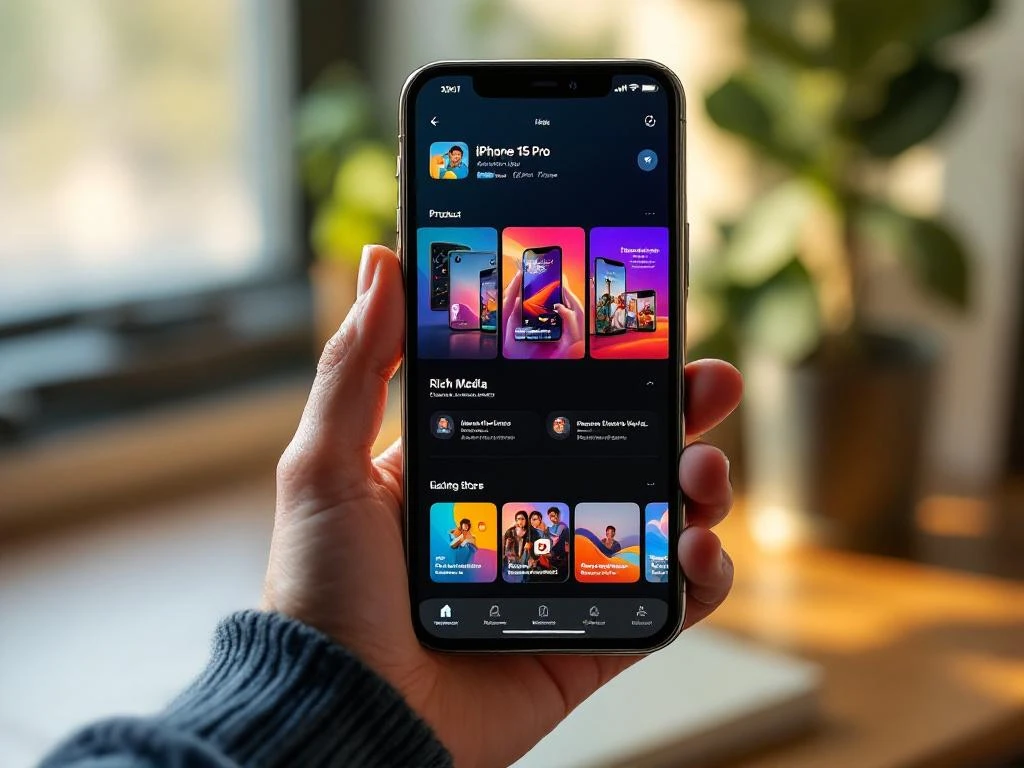
Custom product pages on iOS are alternative versions of your main App Store listing that you can create through App Store Connect. These pages let you customise specific elements like screenshots, app previews, promotional text, and subtitles to target different audiences or campaigns. Unlike your default product page, you can have up to 35 custom variations, each accessed through unique URLs for targeted marketing efforts.
What exactly are custom product pages on iOS?
Custom product pages are alternative App Store listings that Apple allows developers to create alongside their main product page. You can think of them as tailored versions of your app’s store presence, designed to appeal to specific audiences or highlight particular features.
These pages maintain your app’s core information, like name, icon, price, and user ratings, but allow you to modify visual and promotional elements. The key difference from your default listing is that custom product pages are accessed through specific URLs rather than appearing in general App Store browsing or search results.
You can create up to 35 custom product pages per app, giving you significant flexibility for different marketing campaigns. Each page functions as a standalone destination where potential users can learn about and download your app, but with messaging tailored to their specific interests or needs.
How do custom product pages actually work on the App Store?
Custom product pages function through direct URL access rather than organic App Store discovery. When someone clicks a link to your custom product page, they see your alternative presentation instead of the default listing.
These pages work seamlessly with Apple Search Ads campaigns, allowing you to drive traffic from specific ads to matching custom pages. You can also use the URLs in social media campaigns, email marketing, or any other promotional channels where you control the link destination.
The technical setup involves creating the page in App Store Connect, getting it approved by Apple, and then using the generated URL in your marketing campaigns. Users who visit these pages can download your app normally, and Apple tracks the conversion data separately for each custom page, helping you measure campaign effectiveness.
What can you customise on these alternative product pages?
You can modify four main visual elements on custom product pages: app previews (videos), screenshots, promotional text, and the subtitle. These changes allow you to highlight different features or appeal to various user segments.
The promotional text appears at the top of your product page and can be up to 170 characters. This space is perfect for highlighting specific benefits or seasonal offers. Your subtitle, which appears under the app name, can emphasise different value propositions across various custom pages.
However, several elements remain fixed across all pages. Your app name, icon, description, developer name, ratings, reviews, and pricing stay consistent. Apple maintains these restrictions to ensure users always have access to complete, authentic information about your app regardless of which page they visit.
Why would you want to create custom product pages for your iOS app?
Custom product pages enable targeted messaging that speaks directly to different user groups or campaign objectives. Instead of using one generic presentation for all potential users, you can tailor your app’s positioning to match specific audience interests.
These pages work particularly well for seasonal campaigns, feature launches, or audience segmentation. For example, a fitness app might create one page emphasising weight loss for January campaigns and another highlighting outdoor activities for summer promotions. Each page can showcase relevant screenshots and messaging.
The conversion benefits come from better message–market fit. When your App Store presentation aligns closely with what brought users there, they’re more likely to download. You can also test different presentations to see which elements drive better conversion rates, improving your overall App Store Optimization strategy.
How do you set up and manage custom product pages?
Setting up custom product pages starts in App Store Connect under the Product Page Optimization section. You’ll create a new custom product page, upload your alternative assets, write new promotional text, and submit everything for Apple’s review.
The approval process typically takes 24–48 hours, similar to app updates. Apple reviews your custom pages to ensure they accurately represent your app and meet their guidelines. Once approved, you receive a unique URL for each custom page that you can use in campaigns.
Managing multiple custom pages requires organisation and tracking. Consider naming your pages clearly (like “fitness-weight-loss” or “holiday-promotion”) and documenting which URLs connect to which campaigns. Apple provides analytics for each custom page, showing impressions, downloads, and conversion rates, helping you optimise your App Store Optimization efforts across all variations.
Custom product pages represent a powerful tool for app marketers who want to move beyond one-size-fits-all store presentations. By creating targeted pages that speak directly to specific audiences or campaign goals, you can improve conversion rates and better measure the effectiveness of different marketing approaches. The key lies in thoughtful planning, clear organisation, and continuous testing to find what resonates best with your various user segments.
Frequently Asked Questions
How much does it cost to create custom product pages on iOS?
Creating custom product pages is completely free through App Store Connect. There are no additional fees from Apple for creating up to 35 custom pages per app. The only costs involved are your time for creating the assets and any expenses for producing custom screenshots or app preview videos.
Can I use custom product pages for A/B testing my App Store listing?
While custom product pages aren't traditional A/B testing tools, you can use them to test different presentations by directing equal traffic to different pages and comparing conversion rates. However, Apple's built-in Product Page Optimization feature is specifically designed for A/B testing your default listing and may be more suitable for systematic testing.
What happens if my custom product page gets rejected by Apple?
If Apple rejects your custom product page, you'll receive feedback explaining the reasons, similar to app review rejections. Common issues include misleading screenshots, inappropriate promotional text, or assets that don't accurately represent your app. You can revise and resubmit the page after addressing Apple's concerns.
Do custom product pages affect my app's search ranking in the App Store?
Custom product pages don't directly impact your app's organic search ranking since they're not discoverable through App Store search or browsing. However, if they improve your conversion rates from paid campaigns, the increased downloads and user engagement could indirectly benefit your overall App Store performance.
Can I track which custom product page led to each download?
Yes, Apple provides detailed analytics for each custom product page in App Store Connect, including impressions, page views, and app downloads. You can see conversion rates for each page separately, helping you identify which presentations perform best for different audiences or campaigns.
Is there a limit to how often I can update my custom product pages?
There's no specified limit on how frequently you can update custom product pages, but each change requires Apple's approval, which takes 24-48 hours. Plan your updates strategically around campaigns or seasonal promotions rather than making frequent minor changes, as the review process can delay your marketing timeline.
What's the biggest mistake developers make with custom product pages?
The most common mistake is creating custom pages that are too similar to each other or to the default page, missing the opportunity for targeted messaging. Another frequent error is not properly organizing and tracking which URLs correspond to which campaigns, making it difficult to measure success and optimize performance.


 EN
EN  NL
NL